AstroElite Financial Users' Guide
| The installation and activation process for AstroElite/Standard/Professional and Jyotish Master is similar. They are different only in minor details like installation file name or program name in the menus. |
Installation, activation, configurationRequirementsThe program is compatible with any Microsoft Windows system from XP to 7, except Asian versions like Chinese and Japan. There may be some minor compatibility problems with Windows national versions like French or Russian but they are easy to fix. There are no specific requirements to CPU speed or memory size but for better performance dual-core processor and 1G RAM recommended. The 1024x768 or higher resolution display recommended. |
How to purchase
Downloading the programJust click the received link and save the installation package on your hard drive. |
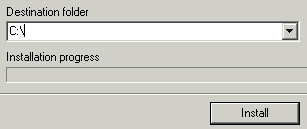
Installation/Removal
The program doesn't modify Windows registry or system variables. It does not add any libraries of fonts to your system. A "deinstallation" process consists of removing the program folder and desktop icon. |
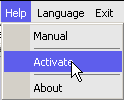
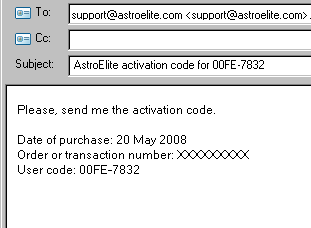
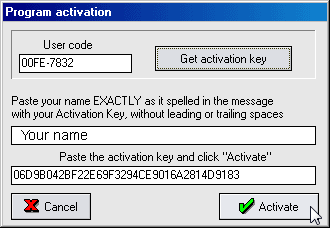
ActivationThe program is protected and you need an Activation Key (AK) to get it run. Click the Help/Activate menu item and press "Get activation key" button. This will run your mailing program with user code inserted. Type in the date of purchase and order/transaction number and send this message. If you wnat to register the program to name other than your billing one, include this name into the e-mail.Shortly you will receive the Activation Key and name. Copy and paste them to the activation form and click "Activate". Be sure you have copied those in full and there are no trailing or leading spaces. The word LOCKED should gone from the main window caption and you see your name there. Now the program is activated and ready to use.
|

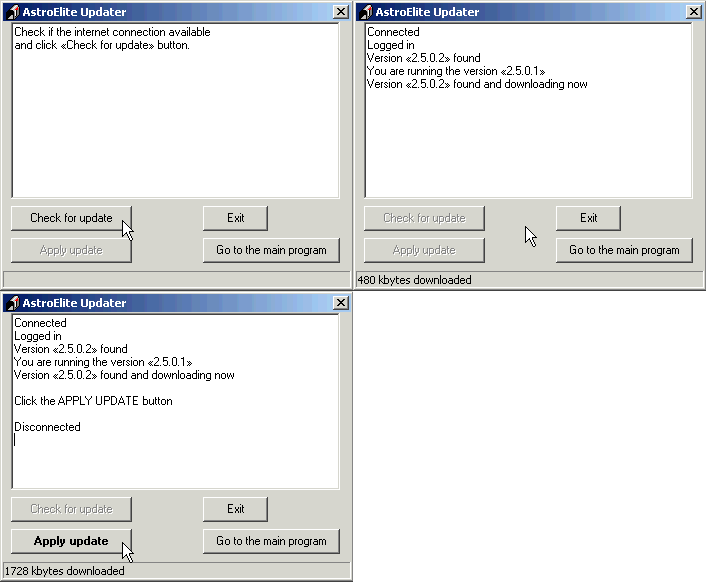
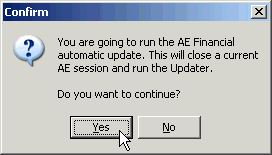
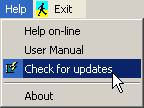 The versions starting from 2.5.x.x have an automatic update feature.
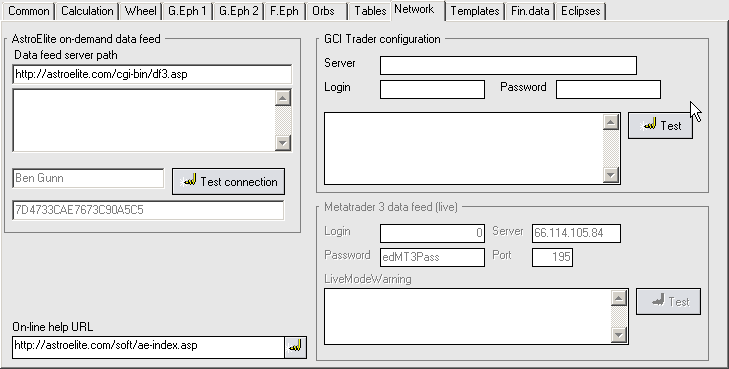 Go to
Preferences/Network. There are two servers you may receive data from: astroElite.com and Global Capital Investment. To use the latter to need to open account with GCI or use your existing demo or live
account login and password.
Go to
Preferences/Network. There are two servers you may receive data from: astroElite.com and Global Capital Investment. To use the latter to need to open account with GCI or use your existing demo or live
account login and password.
Main Page | Privacy | Contact |
©1996-2025 AstroElite.com